Step-by-Step: Enabling B-Roll Montages in a Template
1. Go to the Templates Section
From your left navigation, select Templates, then open the template you want to edit or create a new Template.
(Admins only.)
2. Open the “Overlays & Watermarks” Section
In the template editor, scroll to the Overlays & Watermarks section.
This is where you manage persistent graphics, watermarks, and B-roll settings.
3. Toggle “Enable B-Roll Montage”
Turn on the Enable B-Roll Montage option.
Once active:
Videospan will automatically pull available B-roll clips linked to the post or collection.
The platform will generate a short, visually balanced montage sequence layered over the speaker video.
Transitions, opacity, and timing are automatically optimized to match the template’s style.
Tip: Keep the feature enabled for storytelling templates, thought leadership videos, or highlight reels.
4. Collect and Review Remote B-Roll
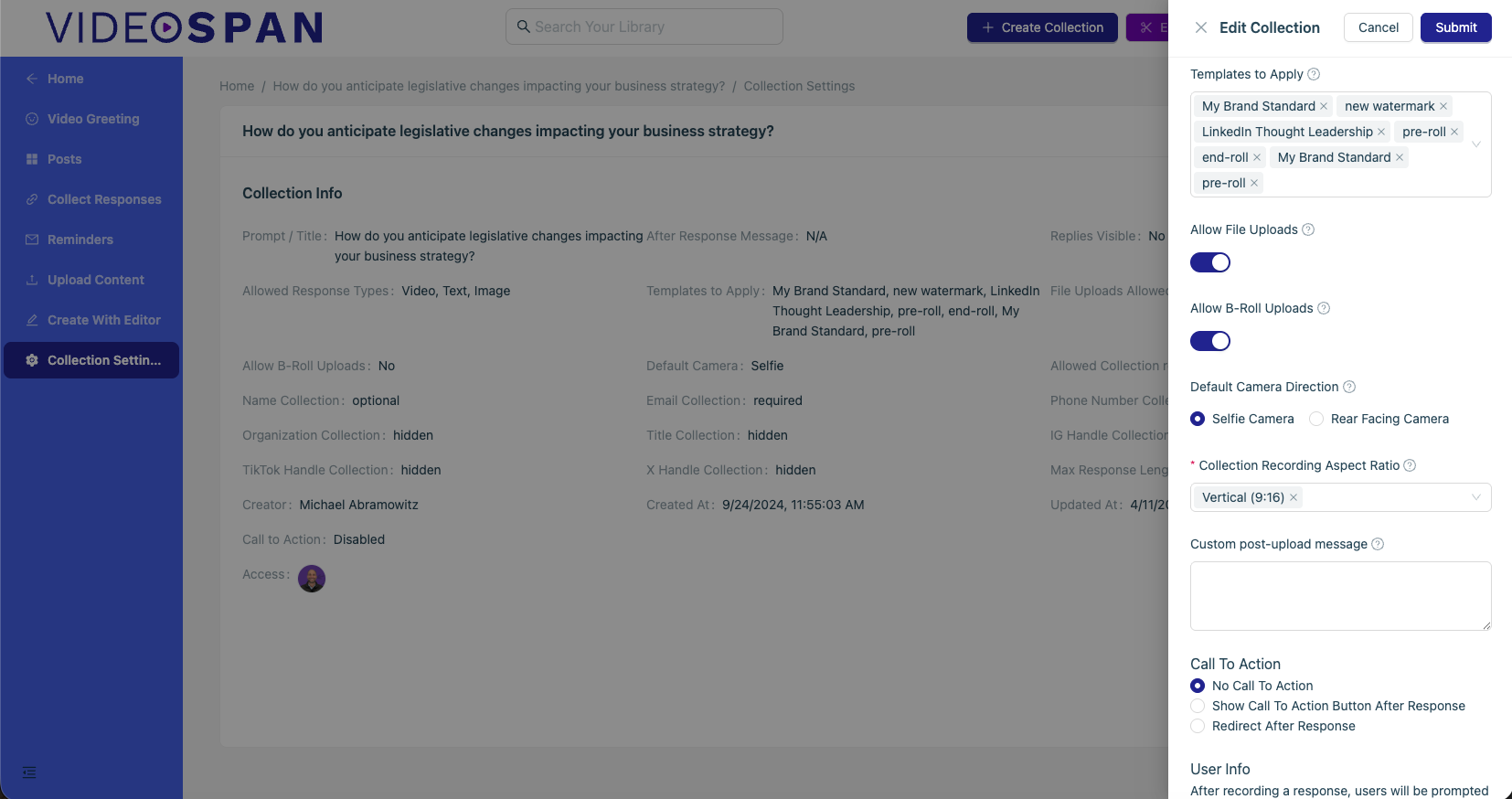
If you’d like to collect B-Roll from remote post responses, enable B-Roll in the Collection Settings
Go to the Collection Settings tab of the same template or collection.
Review clips submitted by participants or uploaded by admins.
Remove or replace any that don’t fit your brand tone.
5. Save the Template
Click Save Template to confirm your changes.
The next time this template is used, Videospan will automatically generate the montage using all available B-roll content.
6. Generate and Review the Video
When users create a post with this template:
Videospan automatically adds the B-roll montage overlay.
The final preview will show smooth transitions between B-roll and the speaker footage.
You can always adjust or regenerate the video if new B-roll clips are added.
Best Practices
Keep B-Roll clips short: 2–5 seconds each works best for pacing.
Use relevant visuals: Choose clips that complement the spoken message.
Upload in advance: Add approved B-roll to collections before recording sessions.
Preview before publishing: Review transitions and audio balance to ensure visual alignment.
Summary
| Step | Action |
|---|---|
| 1 | Open a template in Templates |
| 2 | Go to Overlays & Watermarks |
| 3 | Toggle Enable B-Roll Montage |
| 4 | Confirm B-Roll sources |
| 5 | Save Template |
| 6 | Generate and review new video output |
Was this article helpful?
That’s Great!
Thank you for your feedback
Sorry! We couldn't be helpful
Thank you for your feedback
Feedback sent
We appreciate your effort and will try to fix the article