How to Collect and Use B-Roll with Video Responses
Videospan makes it easy to collect extra visuals — such as product shots, event clips, or team photos — alongside a respondent’s main video.
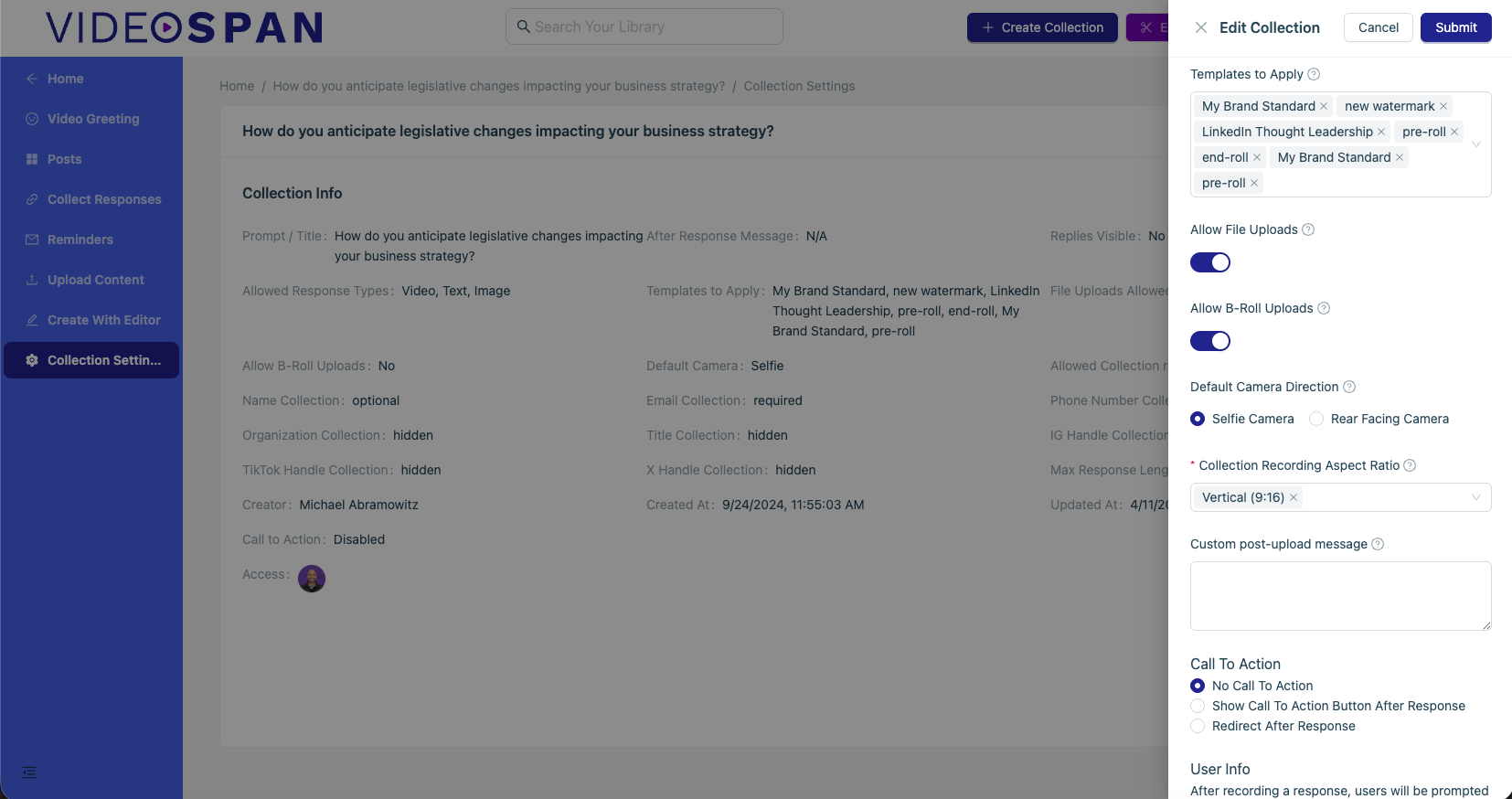
When “Allow B-Roll Uploads” is enabled, users can attach images or short videos with their response, and if a template with B-Roll enabled is used, Videospan automatically builds a polished B-Roll Montage right into the final video.
What This Feature Does
When Allow B-Roll Uploads is turned on in your collection or request:
Respondents can record or upload their main response video, then
Add supporting media — short clips or images that bring their story to life.
If the selected template also has B-Roll Montage enabled, Videospan automatically:
Incorporates the uploaded B-Roll into the final edit,
Places it mid-video (typically during the main talking segment), and
Creates smooth, brand-aligned transitions and overlays using your template settings.
? Step-by-Step: Enabling and Using B-Roll Uploads
1. Enable “Allow B-Roll Uploads”
From the dashboard, open the Collection where you want to collect responses.
In the collection settings, toggle Allow B-Roll Uploads to On.
Save your changes.
Respondents will now see an “Add B-Roll” step after recording or uploading their main response.
2. Respondents Submit B-Roll
When completing their response:
The respondent records or uploads their main video.
On the next screen, they can upload optional B-Roll clips or images.
These assets are automatically stored with their response inside the collection.
Tip: Encourage short, horizontal clips (2–5 seconds each) for best montage pacing.
3. Use a Template with B-Roll Enabled
When generating the final video:
Choose or apply a template that has B-Roll Montage enabled.
Videospan automatically merges the respondent’s main clip with their uploaded B-Roll.
The resulting video includes a B-Roll overlay montage mid-segment — perfectly aligned to your brand intro, outro, and styling.
4. Edit or Re-Order B-Roll
You can fine-tune the montage before publishing:
Open the post in the Editor.
Select the B-Roll tab to view all uploaded assets.
Drag and drop to re-order clips or remove any you don’t want included.
Adjust timing, duration, or overlay style as needed.
Note: Changes apply instantly to the regenerated video preview.
5. Save and Publish
When you’re happy with the B-Roll montage:
Apply the templates that have B-Roll Enabled.
Generate your new output.
Share or publish as usual — complete with dynamic B-Roll visuals.
Summary
| Step | Action |
|---|---|
| 1 | Enable Allow B-Roll Uploads in your collection |
| 2 | Respondents upload supporting media |
| 3 | Apply a B-Roll-enabled template |
| 4 | Edit and reorder clips in the Editor |
| 5 | Apply the template with montage |
Related Articles
[How to Enable and Use B-Roll Montages in Templates]
[Creating a Template in Videospan]
[Editing or Duplicating Templates]
Was this article helpful?
That’s Great!
Thank you for your feedback
Sorry! We couldn't be helpful
Thank you for your feedback
Feedback sent
We appreciate your effort and will try to fix the article